Question: How do I set up motion detection and view recordings?
Answer:
Model reference: CSH-4GDLN-667
Applies to: CSH-4GDLN-667
If your SKU differs, search our support page by your Model SKU to find the correct article.
The Connect SmartHome 4G Dual Camera with Solar Panel can send alerts and save event recordings when movement is detected by the fixed upper camera.
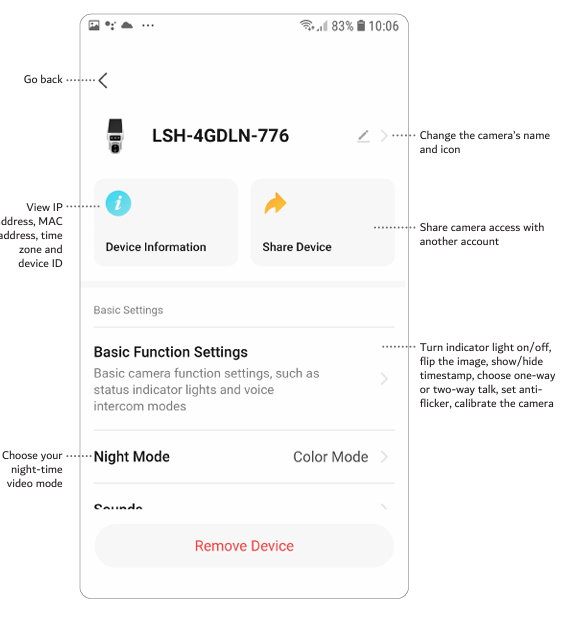
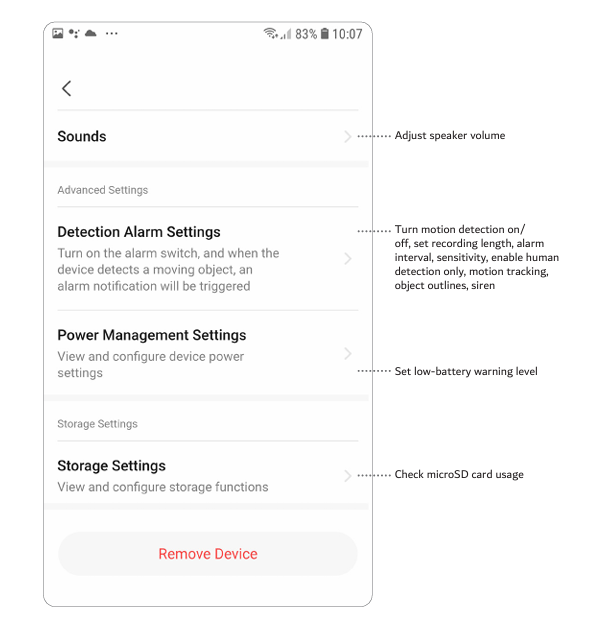
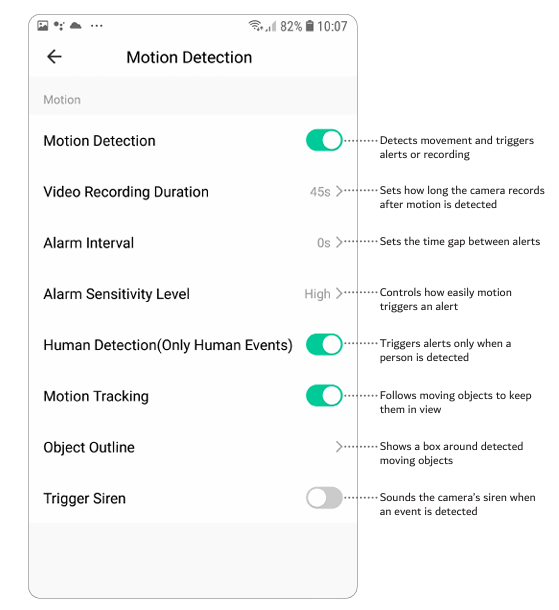
In the Connect SmartHome app, you can configure:
- motion detection on or off
- video recording duration
- time between alerts
- motion sensitivity
- human-only detection
- motion tracking
- object outlines
- camera siren
- low-battery warning
- microSD card storage
You can view motion events in three ways.
From a phone notification:
1. Open or swipe the motion notification.
2. Tap the event to view the snapshot or recording.
From the Connect SmartHome app:
1. Open the app.
2. Go to Me.
3. Open Message Centre.
4. Select Alarm.
5. Choose the event.
6. Tap the image for the photo or tap View for the video.
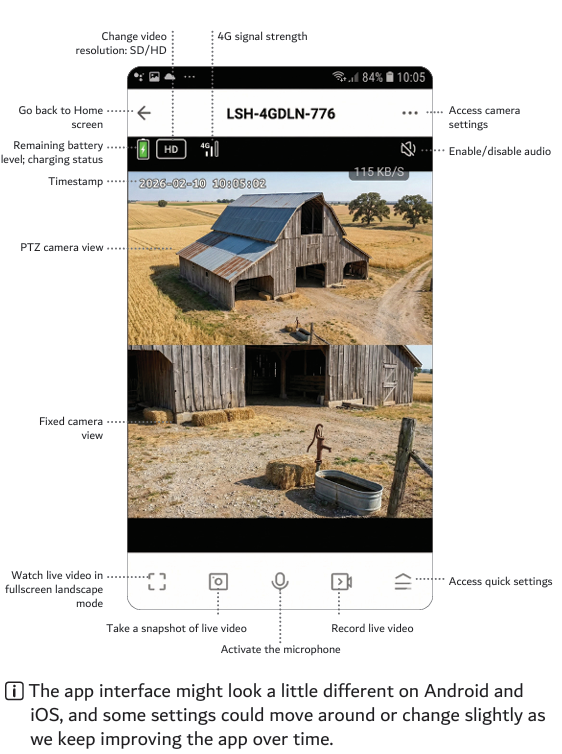
From the camera live view:
1. Open the camera.
2. Open the quick-action menu.
3. Tap Playback.
4. Choose the date.
5. Select the recording you want to watch.
A compatible microSD card is required for local event recording.
Was this article helpful?
That’s Great!
Thank you for your feedback
Sorry! We couldn't be helpful
Thank you for your feedback
Feedback sent
We appreciate your effort and will try to fix the article